
How to share your scans
Copy files to device
When you save a scan, it automatically uploads to Document Cloud. To save a copy on your device:
- From the list of all scans or recent scans, tap the three vertical dots icon against the file that you want to copy.
- Tap Copy to device.
Note
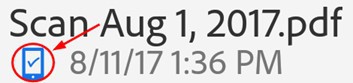
Local PDFs appear with an offline badge if your device does not have an internet connection.
Save files to the cloud
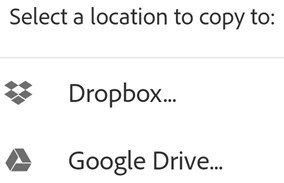
When you save a scan, it automatically uploads to Document Cloud. However, you can save to 3rd party clouds such as Google Drive and Dropbox as well. When you’ve installed a cloud storage provider, Adobe Scan automatically detects the app and modifies its menu to show the save options:
- From any file list, tap the 3 vertical dots icon, or open a file and tap the icon
- Tap Copy to ….
- Tap your cloud storage provider.
Note
If you only have one storage app installed, the menu item says Copy to (provider name).
Save pages as JPEG
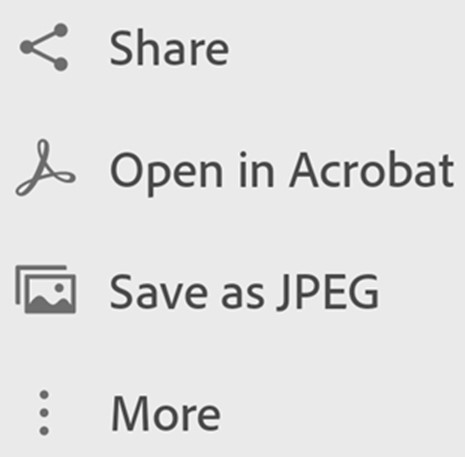
While files automatically save as PDF, you can also save individual pages as JPEG files to your gallery.
To save a file as JPEG, tap the photo icon. Save as JPEG from the file card. Alternatively, for any file from a list, tap the 3 vertical dots icon > Save as JPEG. Every page of your scan automatically saves to your gallery in JPEG format.
Share links to files
To share a link to a file stored in Adobe Document Cloud:
From the recent scans view:
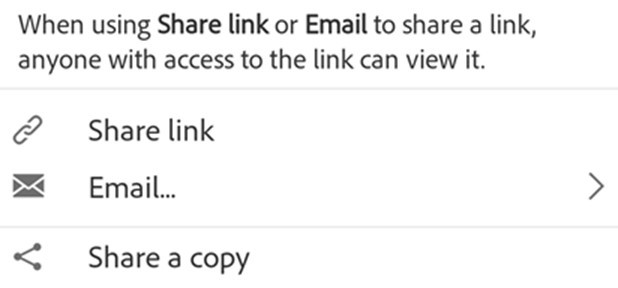
- From the recent scans or all scans view, tap the “share” icon. Share next to the file that you want to share.
- Tap the hyperlink icon. Share link.
Choose an app to share and complete the workflow.
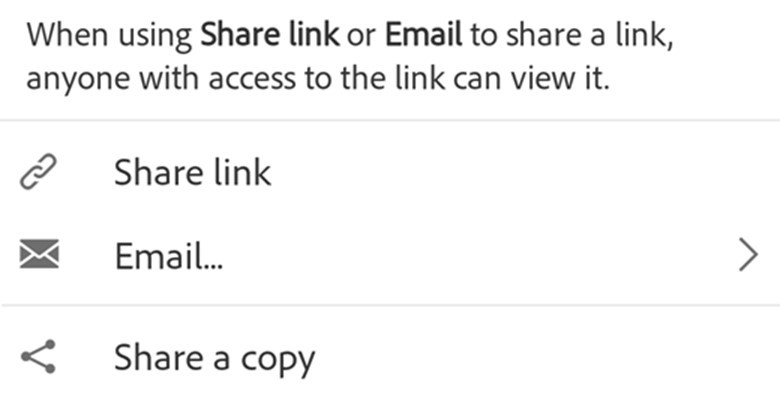
Note that sharing by email also shares a link to a file.
Share file copies
To share file copies:
- From the recent scans or all scans view, tap the share icon. Share for any file.
- Tap share icon. Share a copy.
- Choose one of the ways to share a copy, and complete the workflow.
Note
You can also select multiple files from the all scans view. To do so, either long press any file or tap the 3 vertical dots icon > Select multiple items.
Share scans via email
You can easily email your scans as links or attachments directly from the app. To do so:
- From the recent scans view, tap share icon. Share for any file.
- Alternatively, from the all scans view, tap the 3 vertical dots icon > Share for any file.
- Tap email icon. Email.
- In the dialog that opens, select one of the following sharing options:
- Email link
- Email attachment
- Choose an email app on your device, and complete the workflow.
The scan link or attachment that you share via email goes directly to the Scan app on the Play store, in case the app is not already installed.
 Print
Print 